
- Secure iFrame Embeds with WordPress + Formidable Forms
- Architecture at a glance
- Prerequisites
- What you’ll build
- Setup Process
- Step 1. Security Headers
- Step 2. The Three Exemplar Files
- Step 3. Creating the Page in WordPress
- Step 4. Embedding in Your Headless Frontend
- Known limitations vs. a true rendering engine
- Migration Path
- Accessibility checklist
- Security checklist
Secure iFrame Embeds with WordPress + Formidable Forms
Introduction
This article is Appendix X in the upcoming second edition of Headless WordPress, Formidable Power where we walk through building a headless rendering engine for Formidable Forms that will be available in 3 variations when the book arrives, JavaScript, jQuery, and React. The rest of this article is taken verbatim from the book.
Why This Appendix Exists
Not every developer is ready to jump straight into JSON hydration and custom rendering engines. For those at the beginning of their headless journey, this appendix offers a low-barrier, secure method to “go headless” using the familiar WordPress + Formidable workflow you already know.
The trick is simple: create a WordPress page that contains your form, strip away the heavy theme header and footer, and embed the page into your headless frontend using an <iframe>. This approach lets you play in the headless sandbox while learning the deeper enterprise practices at your own pace.
Architecture at a glance
- Headless Frontend (Site A): React/Next/Static pages host an <iframe> where forms appear.
- WordPress Backend (Site B): Minimal template renders exactly one form view with stripped chrome.
- Security: Apache .htaccess enforces strict CSP and frame-ancestors so only Site A can embed Site B.
Prerequisites
- Apache with .htaccess support (or translate headers to your proxy/server).
- Formidable Forms installed and active on WordPress.
- A child theme to hold your three exemplar files.
What you’ll build
- Security headers that allow framing only from your headless origin.
- A stripped‑down WordPress template that renders a single Formidable form.
- A minimal header and footer that keep the DOM lean and support auto‑resize.
- A safe parent‑page embed with sandboxing and height syncing.
Setup Process
- In WordPress, create a Page and insert your Formidable Form in the editor the same way you normally do.
- Assign the Page Template provided below (page_form.php) to that page.
- Make sure header-custom.php and footer-custom.php are available to the theme’s root directory so the template can call them.
- From your headless frontend, embed the page URL in an <iframe>.
- Add CSP frame-ancestors on the WordPress origin to restrict who may embed it.
Step 1. Security Headers
Before embedding, lock your WordPress instance down so it can only be framed by your frontend domain. Add the following headers to .htaccess (or your server config):
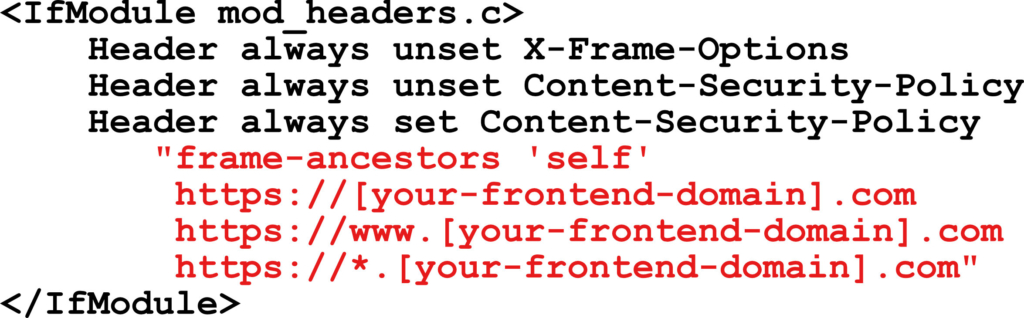
Developer Notes:
The crucial line is frame-ancestors https://your-frontend.example.com;. This directive ensures that only your headless frontend may embed the WordPress form page. Without it, any site could potentially frame your content.
Framed forms on proxied/CDN’d origins may throw console errors or behave inconsistently because providers like Cloudflare inject scripts (analytics, bot fight, etc.) even when caching is bypassed. The page may still function, but it’s not pristine. For production-critical iframes, either disable proxy features, whitelist scripts in CSP, or serve the form from the same domain.
Step 2. The Three Exemplar Files
You will create three custom components inside your active theme’s (or child theme’s) root directory. These files are intentionally minimal. They exist only to load the CSS/JS Formidable needs and the page body content that you add in the editor.
header-custom.php
Copy file to your theme’s root directory with the other page templates.
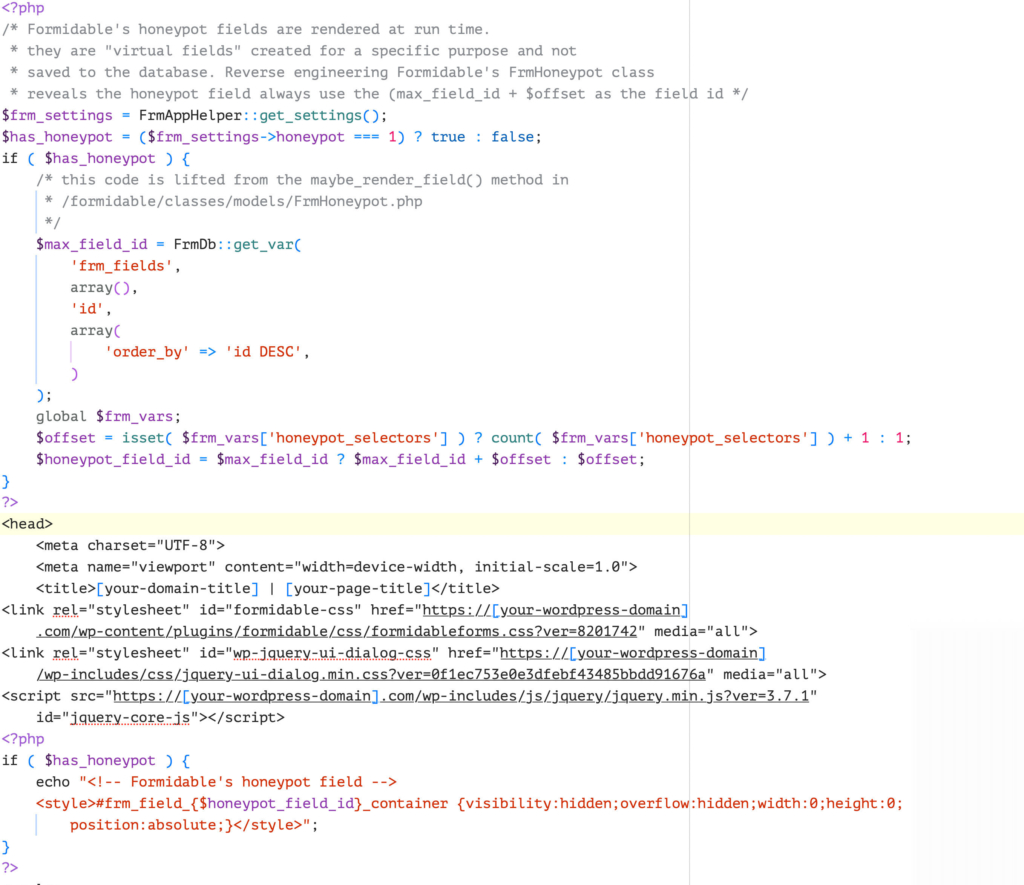
Annotations Part 1
- In PHP, determine whether Formidable has honeypot enabled. If so, render the honeypot CSS. This works for any form.
- <meta charset> and <meta name="viewport"> establish correct encoding and responsive scaling for mobile devices.
- <title> sets a clear document title for the embedded page.
- The two <link rel="stylesheet" …> lines load Formidable’s CSS and the WP jQuery UI dialog CSS used by core/plugins. The file references production assets you’re already using.
- The <script> line loads jQuery from your WordPress origin—matching how the embedded page expects to function.
- If honeypot is enabled, render the honeypot CSS.
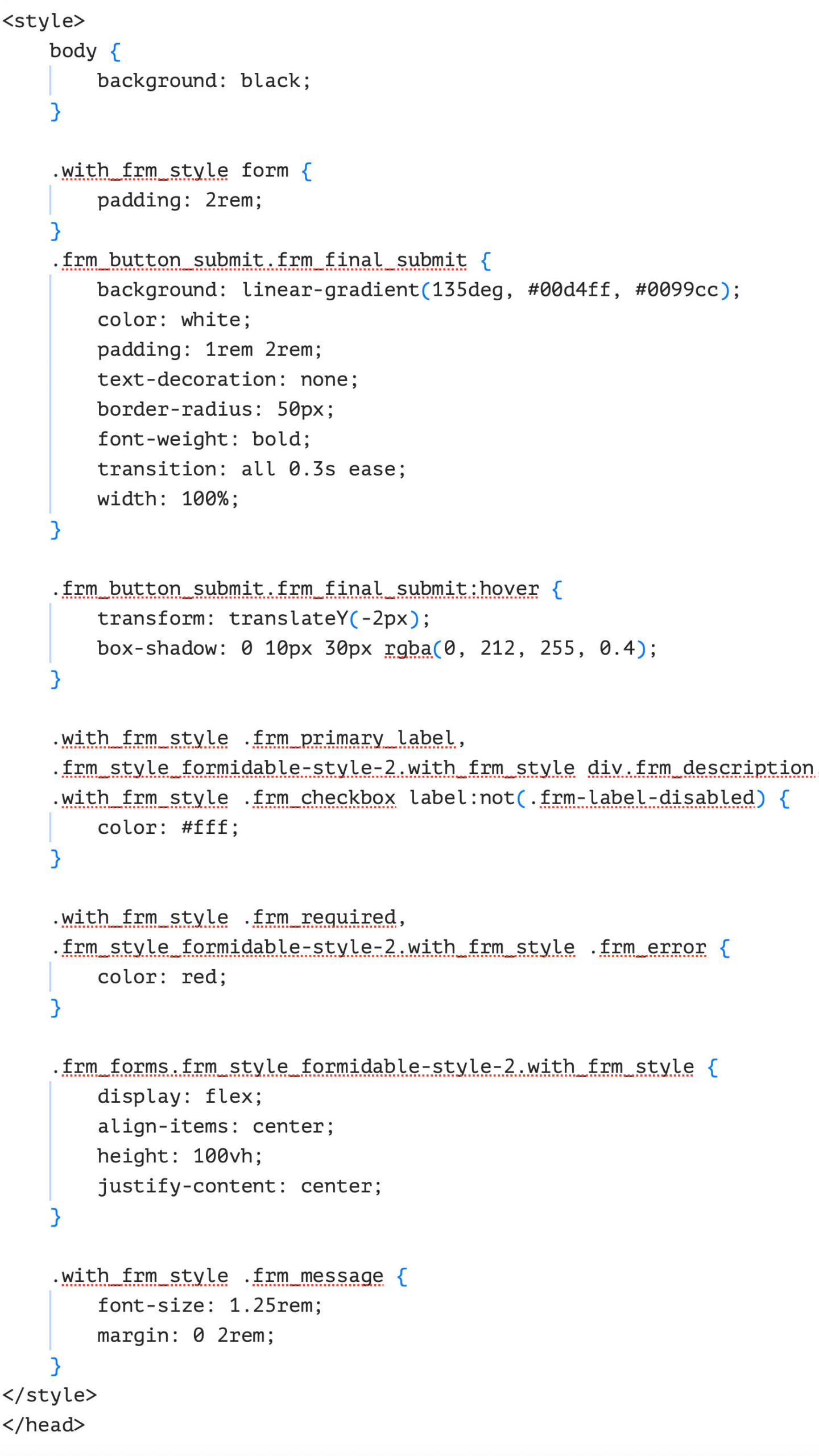
Annotations Part 2
The<style> block provides global look and feel:
- body { background: black; } renders a black canvas in the iframe for your brand aesthetic.
- Additional rules tune containers, typography, spacing, and components.
- .frm_forms.frm_style_formidable-style-2.with_frm_style { display: flex; align-items: center; height: 100vh; justify-content: center; } vertically centers the form in the viewport so it reads like a modal/panel in the embed.
- .with_frm_style .frm_message { font-size: 1.25rem; margin: 0 2rem; } improves legibility for success/error messages.
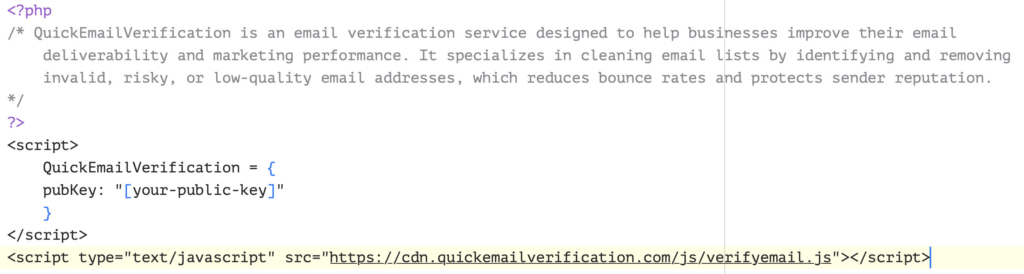
Annotations
- Exposes a global QuickEmailVerification config with your public key, then load the verification script. This keeps the footer minimal while enabling client‑side email hygiene in the embedded form.
- Because the page template calls this footer, the script loads only for your embed page context and not across the whole theme.
page_form.php
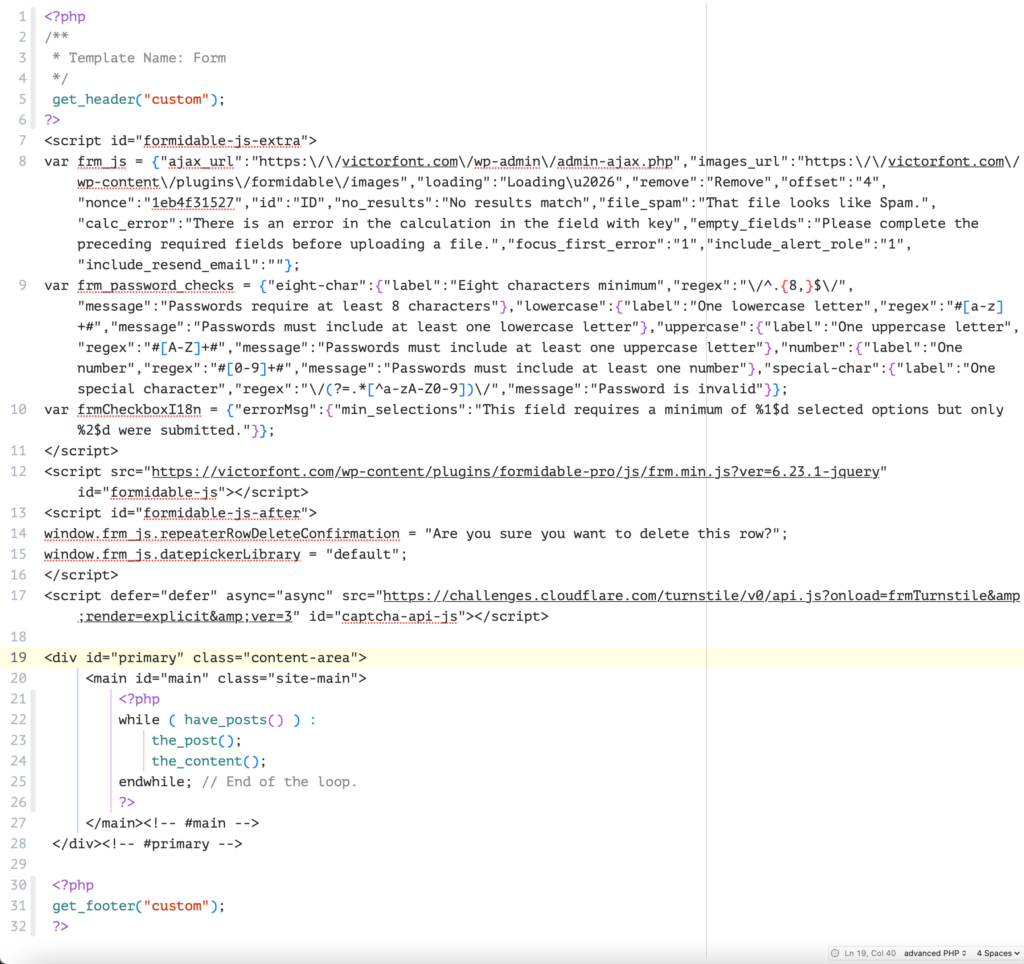
Annotations
- The header comment Template Name: Form registers this as a selectable Page template in the WP editor.
- get_header("custom"); loads your custom header file exactly as intended—no wp_head(), no body_class(). Your styling and scripts are already defined in header-custom.php.
- The three <script> blocks configure Formidable’s runtime (frm_js, password rules, checkbox i18n), load Formidable’s compiled JS (frm.min.js), and set a couple of runtime flags (e.g., repeaterRowDeleteConfirmation, datepickerLibrary).
- The standard Loop (while ( have_posts() ) : the_post(); the_content(); endwhile;) outputs the page body that the editor stores—i.e., where you place your Formidable Form shortcode. This preserves your “build forms the normal way” process.
- get_footer("custom"); loads your custom footer (with the email verification script), keeping this template lean and self‑contained for embedding.
How to Use These Files
- Place header-custom.php and footer-custom.php in your active theme (or child theme).
- Place page_form.php in the same theme and select Template: Form on the page where you insert your form.
- Publish the page and embed it from your headless frontend.
- Add CSP frame-ancestors https://your-frontend.example.com on the WordPress origin so only your frontend may embed it.
Step 3. Creating the Page in WordPress
- In the WordPress Admin, create a new Page.
- Assign the Page Form template in the editor.
- Insert your Formidable Form shortcode in the page content.
- Publish the page — e.g., https://wp.example.com/contact/.
Step 4. Embedding in Your Headless Frontend
In your React/Next.js/static site, add:

This loads the WordPress page, stripped down by your custom header and footer, directly inside your headless site.
Developer Notes
- You still add and manage forms in WordPress exactly as usual; the template just wraps the page with a slim header and footer suited for iframe use.
- Keep styling inside header-custom.php so you don’t rely on the theme’s larger CSS/JS.
- If the iframe height needs tuning, adjust your CSS or set a fixed height on the parent.
Known limitations vs. a true rendering engine
- SEO: The form content is not part of the frontend page’s DOM, so search engines won’t see it.
- Styling: Any styling adjustments must happen inside WordPress.
- Authentication: If you need logged-in user functionality, cross-site cookies may be blocked in modern browsers.
Migration Path
This iframe method is training wheels. As you grow comfortable, you’ll want to:
- Define your data contract (form key → JSON schema via Formidable endpoints).
- Replace the iframe with a hydrated component (your rendering engine) behind a feature flag.
- Keep the WordPress embed as a fallback until parity and QA pass.
- Tighten CSP for API‑only usage (remove framing, allow only API routes).
Accessibility checklist
- Give the <iframe> a specific title that matches the form purpose.
- Ensure visible, keyboard‑focusable submit buttons and clear validation text.
- Tab order should remain predictable: parent → iframe → parent; add skip links if needed.
- Verify color contrast (Formidable styles) against WCAG AA/AAA as your standard requires.
Security checklist
- CSP has frame-ancestors https://app.example.com to restrict framing.
- Formidable handles nonce/Cross-Site Request Forgery (CSRF)∗; test submissions across origins.
- For authenticated flows, beware third‑party cookie restrictions inside iframes.
∗ Cross-Site Request Forgery (CSRF) is a security vulnerability that allows attackers to trick users into performing actions on a website without their knowledge or consent. This is a serious threat, especially for websites that process sensitive data or transactions.

Leave a Reply